UniFi Setup Guide #
Huginn has first-class support for UniFi syslog and CEF logs. This guide walks through configuring a UDM Pro, but the steps are the same for any UniFi gateway (UDM, UDM SE, UXG, USG, etc.).
Requirements #
- UniFi Network Application 9.3.43 or later (CEF SIEM export was added in this version)
- A UniFi gateway (UDM, UDM Pro, UDM SE, UXG, USG, etc.)
- Huginn running and reachable from your gateway on UDP port 5514
Step 1: Open Traffic Logging #
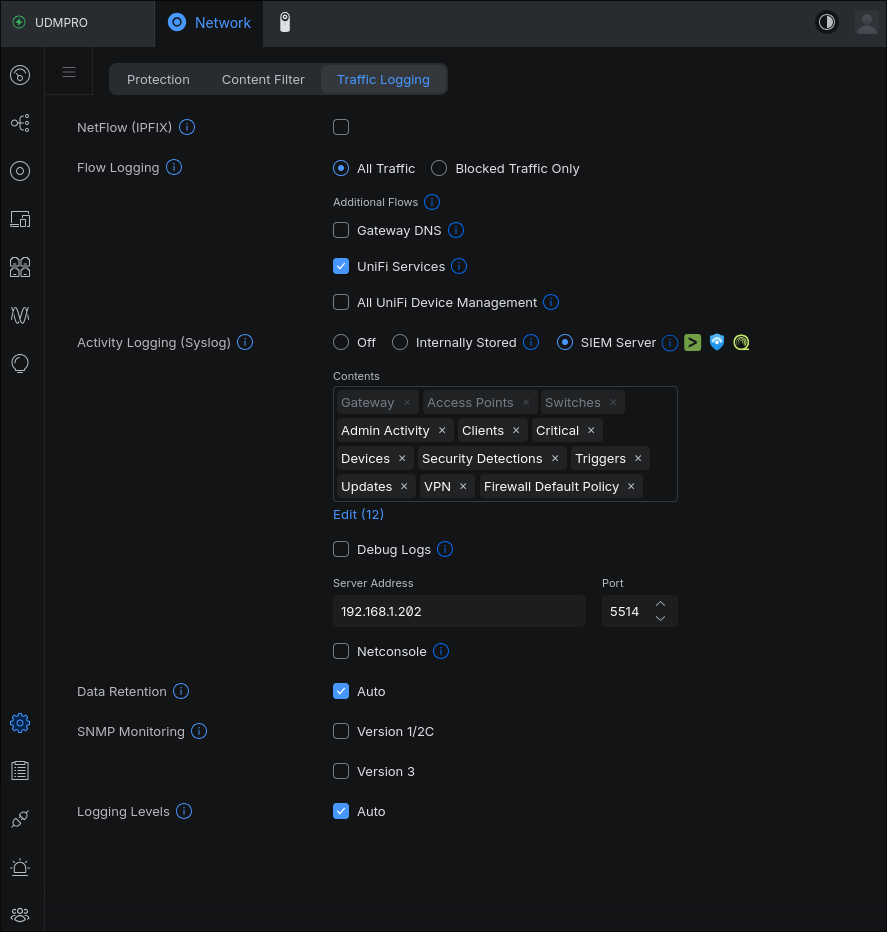
In the UniFi Network Application, navigate to Settings (gear icon in the left sidebar), then select the Traffic Logging tab at the top of the page.
Step 2: Configure Activity Logging #
Under Activity Logging (Syslog), select SIEM Server. This tells your gateway to export structured CEF logs to an external server instead of only storing them locally.
Select Log Contents #
Click Edit next to the Contents list and select the categories you want to export. We recommend enabling all of them for full visibility:
- Gateway, Access Points, Switches – device-level events from your infrastructure
- Admin Activity – who is making changes to your network
- Clients – device connect/disconnect/roam events
- Critical – high-priority system alerts
- Devices – hardware status and state changes
- Security Detections – IPS/IDS alerts and threat detections
- Triggers – rule-triggered events
- Updates – firmware and software update events
- VPN – VPN tunnel connect/disconnect
- Firewall Default Policy – default accept/deny actions
If event volume is a concern, start with Security Detections, Critical, Admin Activity, and Firewall Default Policy, then add the rest once you’ve confirmed the integration works.
Set Server Address and Port #
- Server Address: Enter the IP address of your Huginn instance (e.g.,
192.168.1.202) - Port: Enter
5514
Leave Debug Logs and Netconsole unchecked unless you are troubleshooting a specific issue with Ubiquiti support.
Step 3: Leave Other Settings at Defaults #
The remaining settings on this page do not need to change:
- Data Retention: Leave at Auto
- SNMP Monitoring: Not required by Huginn
- Logging Levels: Leave at Auto
Step 4: Apply and Verify #
Click Apply Changes at the bottom of the page. Your gateway will begin sending syslog to Huginn immediately.
Within a few minutes, you should see devices appearing in the Huginn dashboard. Open the Events page to confirm logs are arriving.
Quick Verification #
If you have shell access to your Huginn host, you can verify logs are arriving before even checking the dashboard:
# Listen for incoming syslog packets
sudo tcpdump -i any udp port 5514 -A -c 5
You should see CEF-formatted lines within seconds.
CEF Format Details #
UniFi exports logs in Common Event Format (CEF):
CEF:0|Ubiquiti|UniFi Network|9.3.33|544|Admin Accessed UniFi Network|1|
  UNIFIcategory=System UNIFIhost=Office UDM Pro src=192.168.1.100
  msg=Admin accessed. UNIFIutcTime=2025-08-23T00:55:54.356Z
Huginn’s parser handles:
- Both Activity Logging (CEF) and Traffic Logging (iptables) formats
- Malformed UniFi OS events (known issue: missing required CEF fields)
- Both old and new timestamp formats (pre/post 9.4.x
UNIFIutcTimefield) - All event categories: admin access, device events, client activity, firewall, IPS, honeypot
Troubleshooting #
No events appearing? Verify UDP port 5514 is reachable from your gateway. On the Huginn host, check that no firewall is blocking inbound UDP:
# NixOS -- the Huginn NixOS module opens this automatically
# Other Linux -- check iptables
sudo iptables -L INPUT -n | grep 5514
Only seeing “UniFi OS” events? These are malformed by Ubiquiti (known issue). Huginn normalizes them automatically, but they carry less information than “UniFi Network” events. Make sure your Network Application is updated to the latest version.
Very high event volume? The Clients category generates a lot of connect/disconnect/roam events, especially on busy WiFi networks. You can disable it in the Contents list if you don’t need per-client tracking.
Port 5514 vs 514? We use 5514 by default because binding to port 514 requires root privileges. If you prefer 514, grant the capability to the Huginn binary (sudo setcap cap_net_bind_service=+ep huginn) or use the NixOS module which handles this automatically.